Audit archive
The Audit archive step builds an audit archive when the verification is complete: one ZIP archive with the verification data of the applicant, sealed by Allpass.ai with a trusted timestamp, so any later change to it can be detected.
The step itself has no screen: it tells Allpass.ai to build the audit archive at the end of the verification. Optionally, it can also ask the applicant to confirm the data they provided, in a screen of its own (see Ask the applicant to confirm their data).
Use it when you need, for every verification, an archive that an auditor, a regulator or another third party can check. See Audit archives for what is inside and how to verify it.
Add the step to a flow
- Click
Add stepand chooseAudit archivein theBackground checksgroup. - The step is added to the
Background checkscolumn, always as the last background check. - Click the
Audit archivecard to open its settings in the panel on the left. The only setting is Ask the applicant to confirm their data.
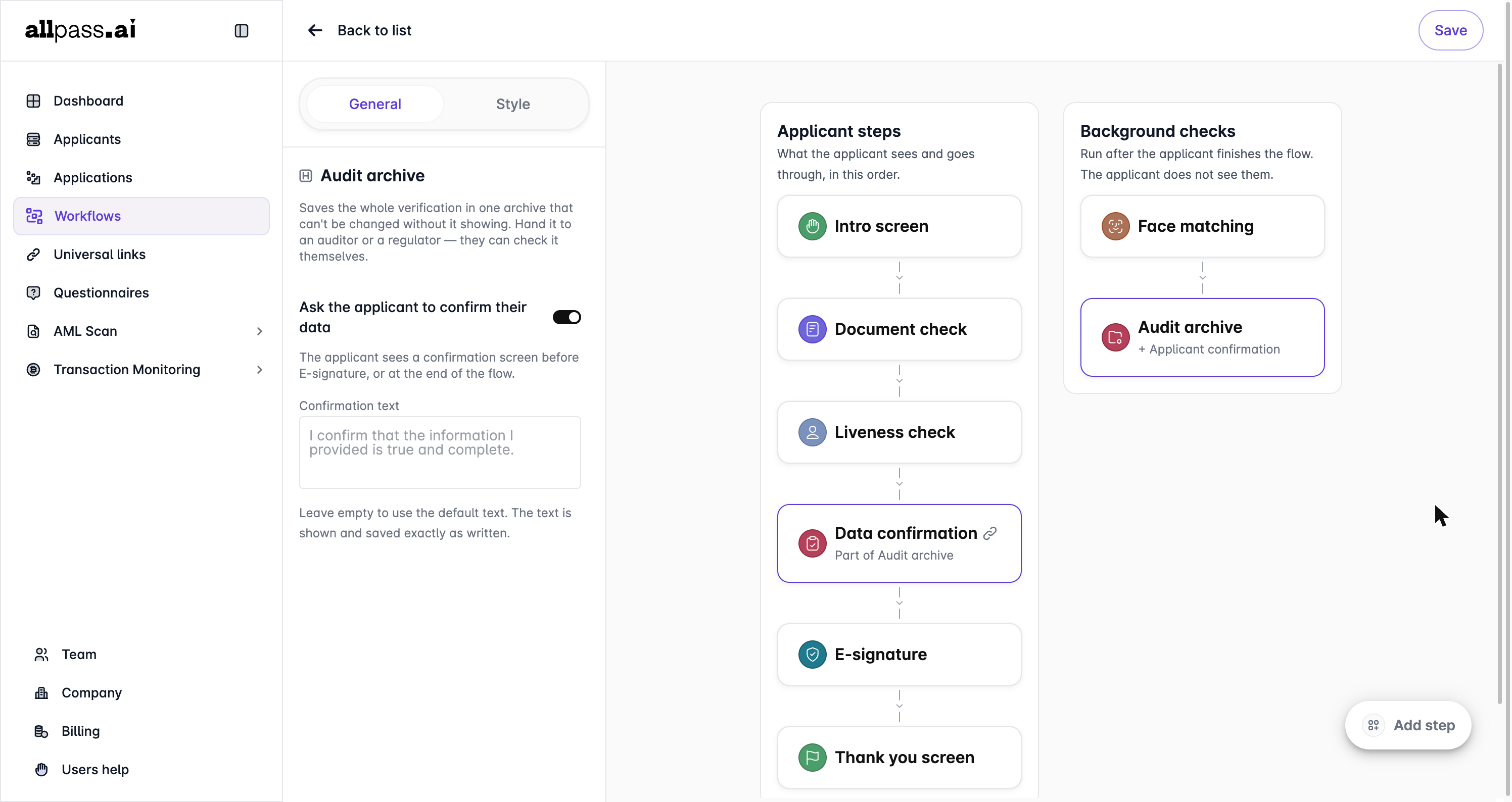
Background checks run after the applicant finishes the flow, so Audit archive comes after all applicant steps, including E-signature.
- A flow can have only one
Audit archivestep. The builder keeps it last; if it is not, the builder shows: "Audit archive must be the last step before Complete." - A flow needs at least one verification step besides
Audit archive,Data confirmationandE-signature.
If you do not see Audit archive in the step picker, the step is not enabled for your account yet. Contact support.
Ask the applicant to confirm their data
Turn on Ask the applicant to confirm their data in the Audit archive settings to have the applicant confirm, before E-signature or at the end of the flow, that the data they provided is true and complete. The confirmation is recorded and sealed in the audit archive.
-
Confirmation text- the sentence the applicant ticks. Leave it empty to use the default text:I confirm that the information I provided is true and complete.
The text can be up to 2000 characters, on one line: line breaks and special control characters are not allowed. It is shown to the applicant and recorded exactly as written. It is not translated, so write it in the language your applicants use.
When the option is on:
- A linked card
Data confirmationappears in theApplicant stepscolumn, with a link icon and the caption "Part of Audit archive". It cannot be dragged or removed on its own. Click it to open the Audit archive settings. - The card has a fixed place: right before E-signature, or the last applicant step (before
Thank you screen) when the flow has no E-signature. The builder moves it there by itself. - The
Audit archivecard shows a second line: "+ Applicant confirmation". - The
Add stepwindow has no separate item for it: the option is the only way to add it. - In the preview of the flow, the switcher has a
Data confirmationicon in the order of the steps; it shows the screen the applicant sees.
Turn the option off, or remove Audit archive, and the Data confirmation card is removed too. If the card is not in its place or the flow has no Audit archive, the flow cannot be saved: "Data confirmation needs Audit archive and must come right before E-signature, or last among the applicant steps."
E-signature signs your documents only. The applicant's data is confirmed here, in Audit archive, so that a rollback of one step re-asks only what depends on it: see When the signature is re-asked.
What the applicant sees
The screen Confirm your data ("Check the information you provided during this verification."; Confirm data in the progress bar) shows:
Your data- the list of the data the applicant provided: their documents, selfie, liveness video, proof of address, email, phone, questionnaire answers (shown as one row with the number of answers) and other data they gave. When there is nothing to list, the screen says "No data to list." and the applicant can still confirm;- your confirmation text next to a checkbox;
- the
Confirmbutton, enabled once the box is ticked.
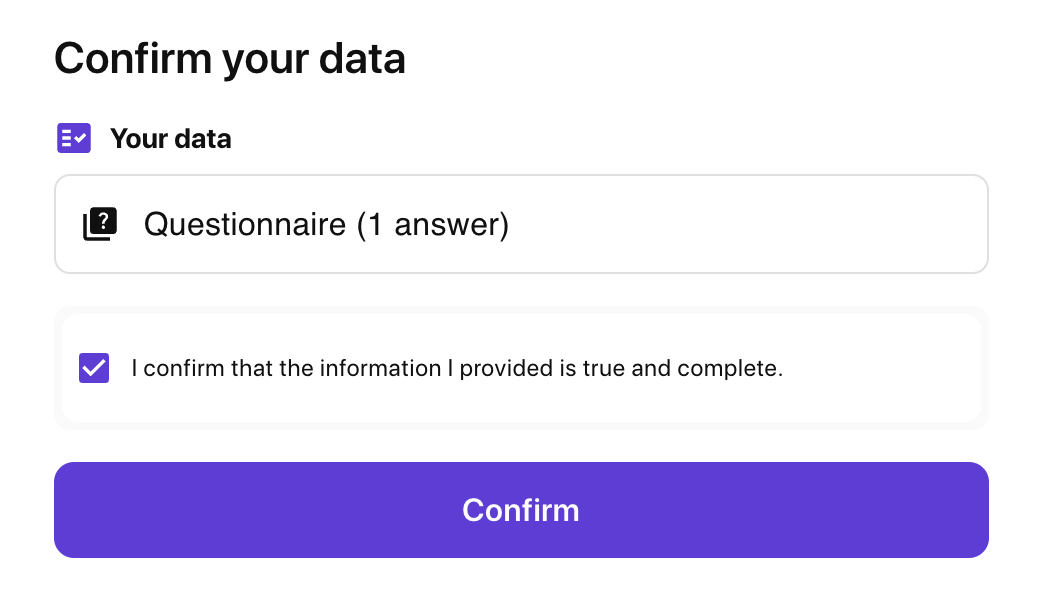
There is no name and no signature to enter. The labels of the screen are translated into the applicant's language; your confirmation text is shown as you wrote it.
If the data or the text changes while the applicant has the screen open, the applicant sees "Your data or the text were updated. Please review them again." and must tick the box again.
What is recorded
When the applicant clicks Confirm, Allpass.ai records:
- the date and time (UTC), the IP address, the location, the user agent and the locale of the applicant;
- the confirmation text exactly as shown, its SHA-256 and its version;
- the list of the confirmed data (the data manifest): for every file its SHA-256 and size, for every value the value itself, and one SHA-256 over the whole list (the data SHA-256);
- one more hash over all of it, the confirmation SHA-256.
The confirmed data is everything the applicant has provided and that is active in their profile at that moment, including data from earlier verifications of the same applicant. The results of your checks are never part of it: AML results, risk scores, face-match scores, decisions, and the values Allpass.ai read from documents.
The confirmation is shown in the applicant profile (see Data confirmation in the applicant profile) and sealed in the audit archive as data-confirmation.pdf (see Audit archives).
When the confirmation is re-asked
- A reviewer or your system through the Public API rolls back another applicant step, for example Liveness or Questionnaire. The confirmation covers all the data, so it is cancelled, and after re-passing the step the applicant confirms the data again. Rolling back a background check (AML, Face matching, Face uniqueness) or E-signature does not cancel it.
- A step is rolled back automatically, for example because the document expired. The confirmation is kept.
- A reviewer can also roll back the
Data confirmationstep on its own. The applicant confirms again; the E-signature is kept.
Turning the option on in a flow in use
Turning the option on adds an applicant step to the flow. Like adding any applicant step to a flow in use, it moves the applicants who already have a decision (approved or rejected) to Incomplete, and they are asked to confirm their data on their next pass. Applicants who are still in the flow confirm it when they reach the step. If you do not want that, create a new flow for the option.
When the audit archive is built
The audit archive is built when the whole verification is complete, including background checks that may still be running after the applicant has finished the flow (for example AML). It is built also when a background check fails.
- One audit archive per verification. If the same verification completes again later (for example, an AML check is re-run from the dashboard, or a stuck check is retried), no new audit archive is built and nothing is charged again.
- A new verification gets a new audit archive. If an operator rolls back a step and the applicant passes it again, that is a new verification: it gets a new audit archive, charged again.
- If the flow also has the E-signature step, the audit archive waits until the signed copies and the signature certificate are ready, and includes them unchanged in a
signature/folder. If the signature files do not become ready, the audit archive fails with "The signature files are not ready. Re-generate the signature first." - Without a signature in the verification, the certificate of completion in the audit archive says
End-user signature: not captured.
The audit archive appears in the Audit archives block of the applicant's profile as From the flow. See Audit archives.
Billing
Audit archive is a paid service. The price depends on your billing plan: see the price of each check when you choose or change a plan. In billing it is shown as Audit archive (SEALED_DOSSIER).
- It is charged once per verification, when the audit archive is Ready.
- An audit archive that fails is not charged. Re-generating it is free.
- The balance is not checked before the audit archive is built, so the charge is made even if it takes the balance below zero.
- The applicant's data confirmation is not charged on its own: it is part of the Audit archive price.
Test mode
In Test mode the step, the data confirmation included, works the same way, but the audit archive is never charged: the row shows "Not charged (test mode)". Audit archives made in Test mode carry the mark "TEST MODE — not valid as evidence". They cannot be verified: the profile shows "Test archives can't be verified" instead of the Verify link, and their PDFs and README.txt carry no verify link. Do not use them as evidence.