Face Uniqueness
The Face Uniqueness step checks that a person goes through verification only once. It takes the applicant's face and searches for it among the applicants you have already verified. This is one-to-many (1:N) face matching: one face is compared with every face collected so far.
Use it to catch:
- one person opening several accounts, for example to abuse sign-up bonuses or limits;
- a person who was declined and tries again with someone else's document or under a new name;
- identity farms, where the same face appears with different documents.
Facematching answers a different question. It compares faces within one applicant (one-to-one), for example the document photo with the liveness video, to confirm the document belongs to the person. Face Uniqueness compares the applicant with other applicants. The two steps complement each other.
Add the step to a flow
- Click
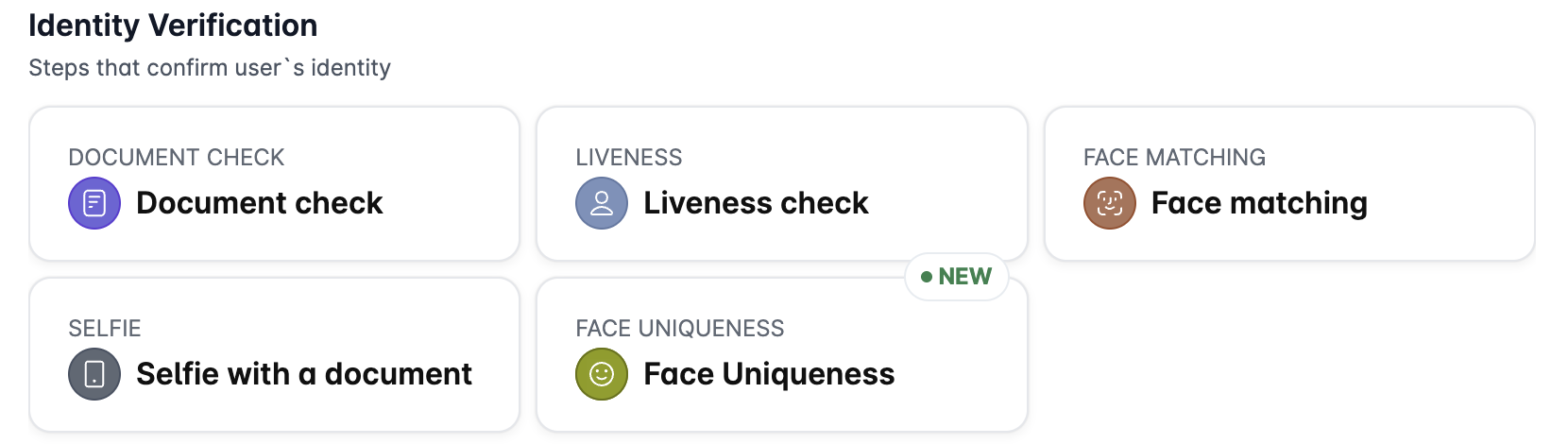
Add stepon the flow canvas and chooseFace Uniquenessin the Identity Verification group.
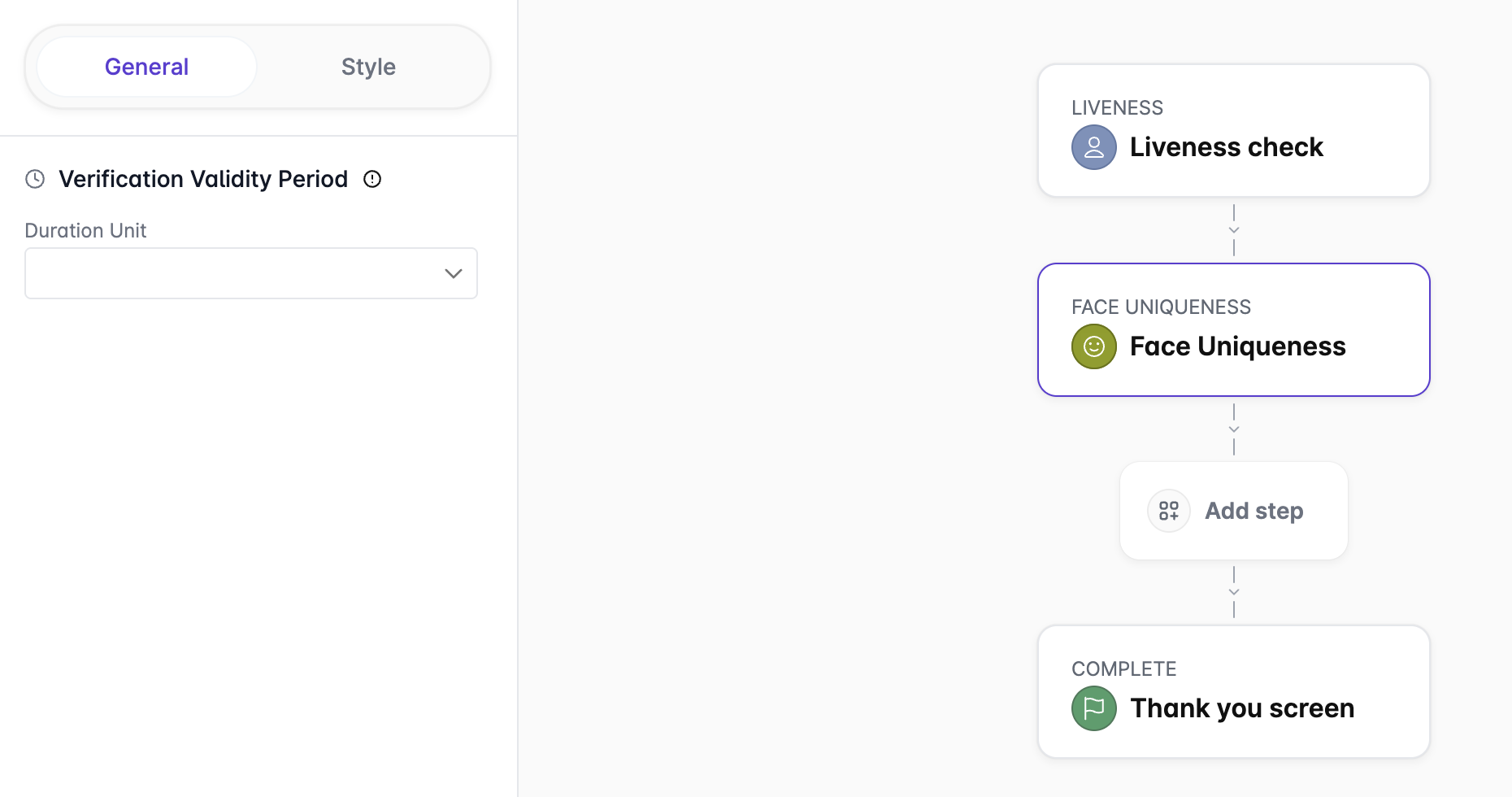
- The flow must also contain a step the face is taken from: Liveness or Document Check. See Which face is checked.
- Click
Face Uniquenessto open its settings in the left panel.
| Setting | Description |
|---|---|
| Verification Validity Period | How long a successful result stays valid. After this period the applicant has to verify again. |
There is nothing else to configure. The step runs on its own once the applicant reaches the end of the flow.
How the check works
- The applicant goes through the flow as usual. Face Uniqueness shows nothing to the applicant and adds no screens.
- When the applicant finishes the flow, the check runs in the background. The result usually arrives within a minute. Until then, the applicant's status is IN PROGRESS.
- The applicant's face is compared with the faces of all earlier unique applicants of the same application.
- If no similar face is found, the step passes and the applicant's face is added to the faces that later applicants are compared with.
- If a similar face is found, the step fails and the matching applicants are listed in the applicant profile.
Which face is checked
| The flow contains | The face used for the search |
|---|---|
| Liveness | A frame from the liveness video. |
| Document Check, without Liveness | The portrait photo from the identity document. |
| Both | A frame from the liveness video. The liveness frame is preferred because the document portrait is often small, old or printed. |
A photo from the Selfie With a Document step is not used for the search.
Who the applicant is compared with
- Applicants of the same application only. If you have several applications, each one keeps its own set of faces, and applicants of different applications are never compared. Applicants of other companies are never compared with yours.
- Only applicants who passed Face Uniqueness themselves. An applicant whose face matched someone else's is not added, so one duplicate does not lead to a chain of new ones.
- A face is added right after the check passes, before your team reviews the applicant. Declining the applicant later does not remove their face from the comparison. Deleting the applicant does: their face is removed and later applicants are no longer compared with it.
What counts as a match
Two faces match when their similarity is 90% or higher. This threshold is the same for every flow and cannot be changed.
What happens with the result
| Result | With Flow Auto-Approval | Without Auto-Approval |
|---|---|---|
| No match found | The step passes and does not stop the approval. | The step passes. The applicant goes to COMPLETED for your review as usual. |
| A match found | The step fails and the applicant is REJECTED automatically. | The step fails. The applicant goes to COMPLETED, and the reviewer sees the matching applicants. |
| The check could not run (a technical error) | The applicant is put ON HOLD with the reason Face uniqueness check error, so a reviewer decides. | The same: ON HOLD. |
A match does not always mean fraud: the same person may have verified twice in good faith, for example after losing access to their account. When you review the applicant manually, open the matching profiles and decide. See Face Uniqueness in the applicant profile.
Billing
Face Uniqueness is billed separately from the other steps, as Unique Identity Check.