My Profile
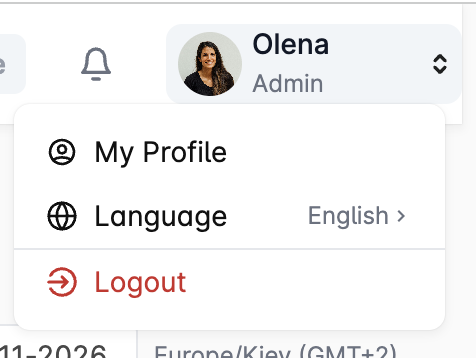
To access your profile settings, click the profile photo icon in the upper-right corner of the platform. The My Profile page allows you to manage your personal account settings, update your credentials, configure personal notifications, and manage account security.
Profile Information
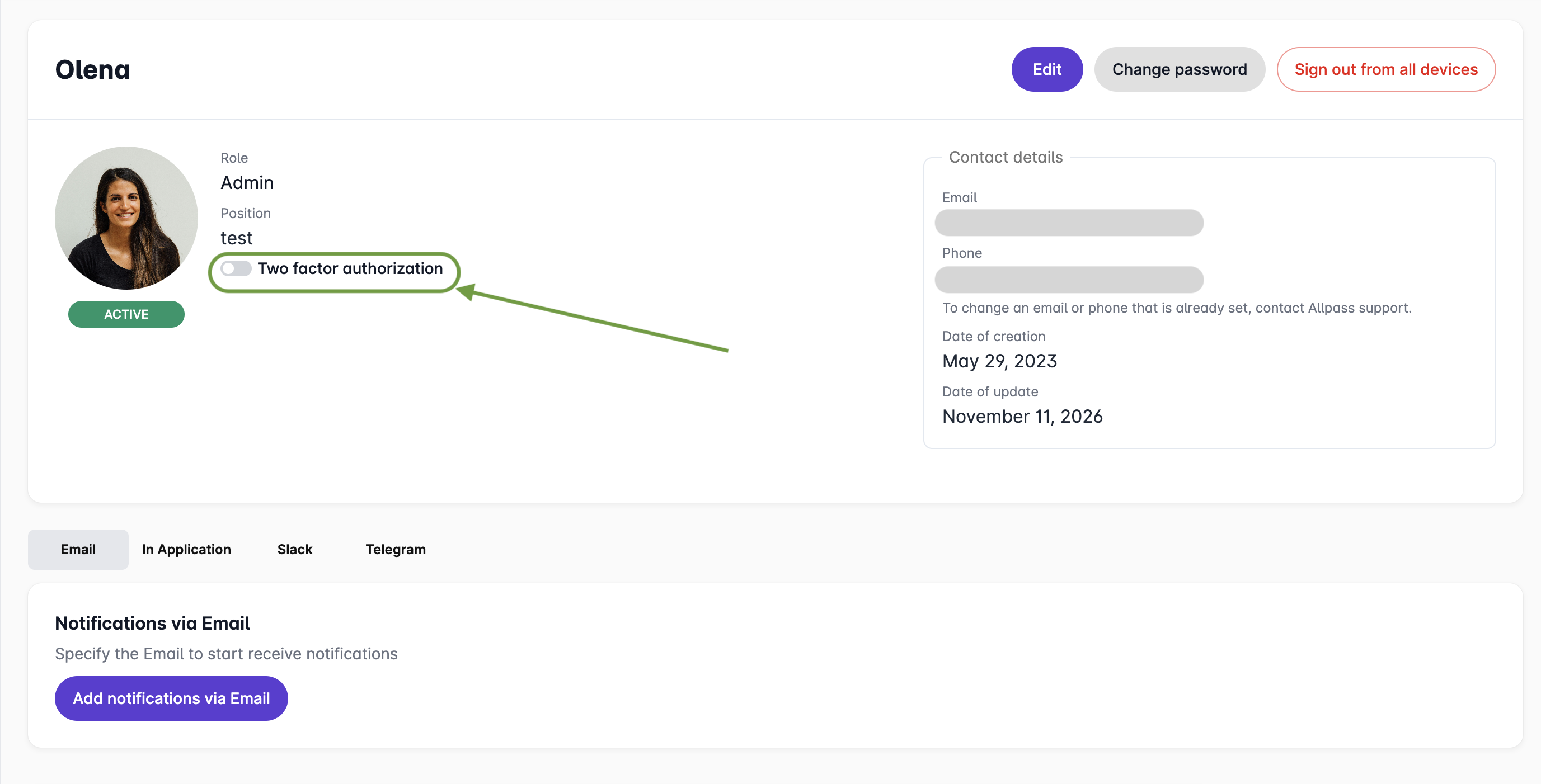
The top section displays your personal account information:
- Name – Your account name.
- Profile photo – Your account avatar.
- Status – Indicates whether your account is active.
- Role – Your assigned role within the platform (e.g., Admin).
- Position – Your job title or position within the company.
You can manage your profile using the following actions:
- Edit – Update your personal profile information.
- Change password – Change your account password.
- Sign out from all devices – Terminate all active sessions across devices simultaneously. Use this option if you suspect unauthorized access to your account or notice any suspicious activity.
Two-Factor Authentication (2FA)
Two-factor authentication is mandatory to ensure account security and protect sensitive data.
It adds an extra layer of protection by requiring an additional verification step when signing in, alongside your password.
Make sure two-factor authentication is enabled for your account.
Contact Details
This section displays your registered contact information:
- Email – Your account email address.
- Phone – Your registered phone number.
- Date of creation – The date your account was created.
- Date of update – The date your account information was last updated.
If you need to change an email address or phone number that has already been registered, please contact Allpass.ai support.
Personal Notifications
The Notifications section allows you to configure how you personally receive platform notifications.
You can manage notifications through the following channels:
- Email – Receive notifications at a specified email address.
- In Application – Receive notifications directly within the Allpass.ai platform.
- Slack – Receive notifications via Slack.
- Telegram – Receive notifications via Telegram.
To configure notifications for a specific channel:
- Open the corresponding notification tab.
- Click Add notifications.
- Follow the instructions to configure the selected notification channel.
Important: Notification settings in My Profile apply only to your personal account. If you want to configure notifications for your team or other users, go to Application Settings, where team-level notification settings are manage