E-signature
If the flow has the E-signature step and the applicant signed, the applicant's profile shows the E-signature block.
What the block shows
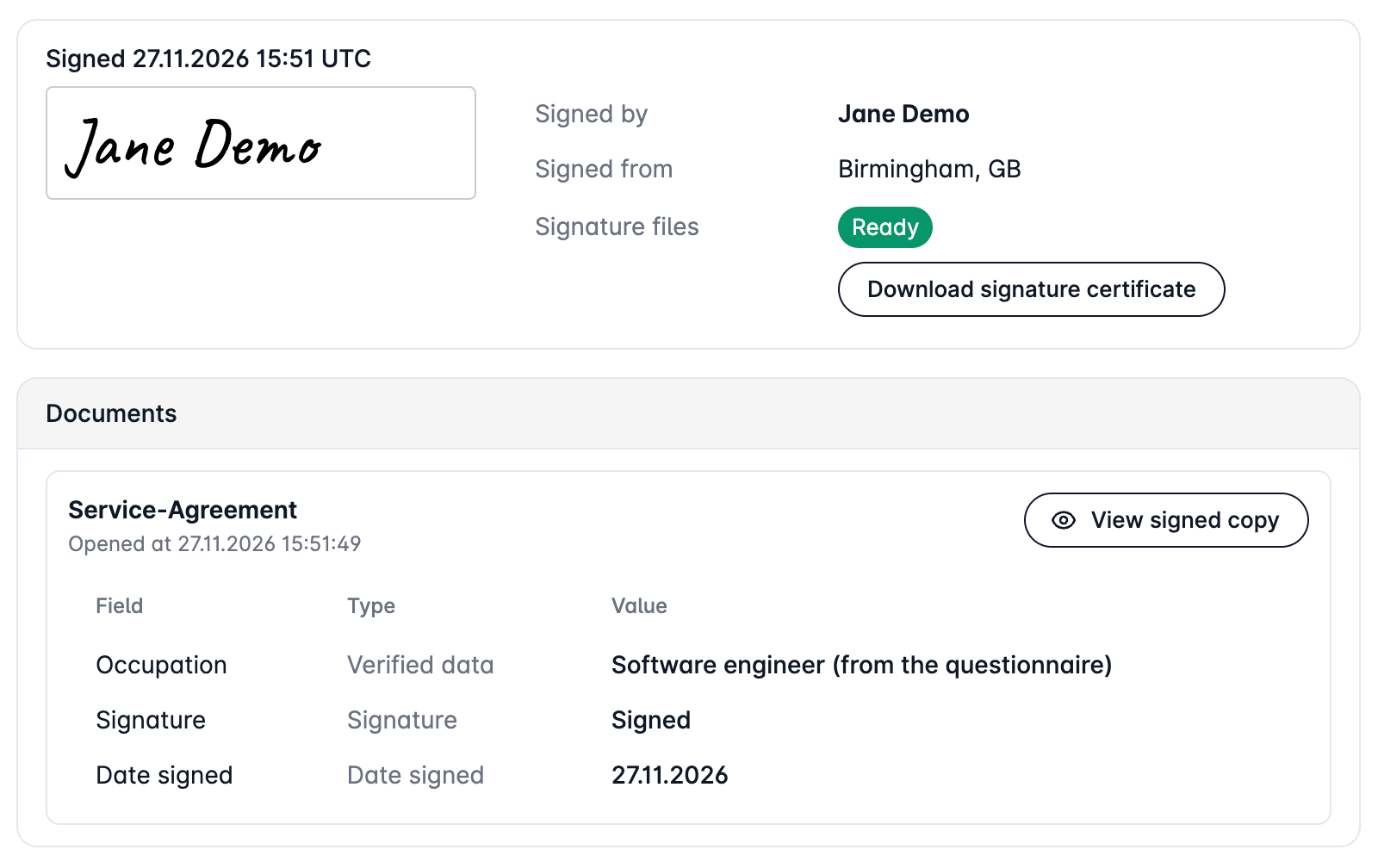
Open the applicant's profile and expand E-signature. The block is split into parts:
- The signature at the top: the typed or drawn signature as the applicant made it,
Signed <date> UTC,Signed by(the name the applicant entered) withVerified namefrom the document and a mark whether they match ("differs from the verified name" if not),Signed from(city and country), andSignature fileswith their status andDownload signature certificate. - Documents - a card for each document: the title, when the applicant opened it ("Opened at ..." or "Not opened") and
View signed copy.View signed copyopens the signed copy in a window on the same page; close it withCloseor the cross, or open it in a new tab withOpen in new tabto save it. A document with fields has a table of its fields in reading order:Field,TypeandValue(Signed,TickedorNot ticked, the initials, the date asDD.MM.YYYY, or the verified value with its source - "from the identity document", "from the proof of address" or "from the questionnaire" - orMissing). - Signed data - only for older signatures that also signed the applicant's data: a table of every signed item,
Item,TypeandValue, which is the value the applicant entered, orFilefor a file. An item whose file was no longer in storage when the applicant signed is markedMissing. E-signature now signs documents only; the applicant's confirmation of their data is shown in the Data confirmation block.
The confirmation text, hashes, the IP address, the device and the IDs are not shown in the profile. They are in the signature certificate.
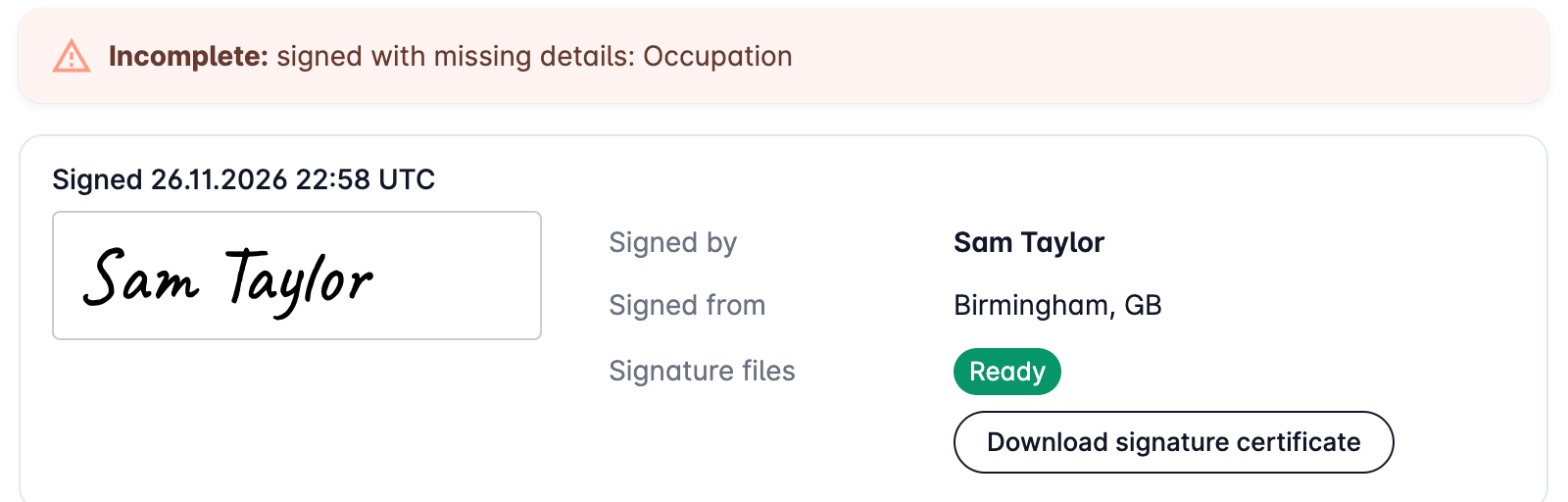
Incomplete signature
A Verified data field that is not required can be signed without its value, for example when the flow has no proof of address. Such a signature shows the warning Incomplete with the labels of the missing fields: "signed with missing details: Address". The missing fields are empty on the signed copy and read Missing in the fields table and in the certificate.
A required field never ends up like this: without its value the applicant cannot sign.
Outdated signature
A signature covers the verified values on its documents at the moment of signing. If such data changes later without a reviewer, for example the identity document expires or an additional check fails, the signature stays valid for the data as it was, but the block warns: "The applicant's data changed after signing on 24.11.2026 10:15: Document check (the document expired). This signature and its audit archive cover the data as it was at signing."
Ask to sign againasks the applicant to sign the documents again, with the current values, on their next pass of the verification. The E-signature step is charged again when the applicant signs.- After the applicant signs again, the new signature is shown at the top, and the earlier ones are under
Previous signatures(collapsed). Each previous signature keeps its signed copies and certificate to view and download.
When a reviewer rolls back a step that supplied a value to a Verified data field of a signed document, the signature is cancelled instead, and the applicant signs again after re-passing the step. A reviewer rollback of any other step keeps the signature. See When the signature is re-asked.
Signature files
The signature files have the same statuses as audit archives: Requested, Generating, Ready and Failed. The status updates on its own. If the files fail, the block shows the reason and Re-generate. Re-generating is free.
Downloading is free. Each request, generation, failure and download of the signature files is written to the applicant's timeline ("Signature files requested / generated / failed / downloaded").
Permissions
The E-signature block is shown to everyone who can open the applicant. The Signature files row and Previous signatures need the View audit archives permission; to download and re-generate, Download audit archives (see User Roles and Permissions).
Related
- E-signature step - how to set up the step, the documents and the fields, and what the signed copies contain.
- Audit archives - the audit archive made by the flow also holds the signed copies and the certificate, unchanged.