Audit archives
An audit archive is a ZIP archive with the verification data of one applicant. Allpass.ai builds it on the server and seals it, so any later change to it can be detected. You get one in two ways:
- From the flow - made automatically when a verification is complete, if the flow has the Audit archive step. One audit archive per verification. If the applicant signed in the E-signature step, the audit archive also holds the signed copies and the signature certificate. If the applicant confirmed their data (the option Ask the applicant to confirm their data), it holds the confirmation too.
- Created manually - an operator requests it from the applicant's profile, for example when the flow had no Audit archive step. It is a snapshot of the data at the time of the request.
Where to find it
Open the applicant's profile. The Audit archives block lists all audit archives of the applicant. Each row shows the kind (From the flow, Created manually, or From E-signature for older archives made at signing), the status, the date and the size. A Ready row also has:
Download archive (ZIP);Archive ID- the full ID, with an icon that copies it. Send this ID to anyone who must check the archive;Verify- opens the public verification page of this archive (https://allpass.ai/verify/<archive ID>), see Verify an audit archive. A live audit archive shows theVerifylink. An audit archive made in Test mode shows "Test archives can't be verified" instead, and "Not charged (test mode)".

When the applicant has no audit archive yet, the block says "The audit archive is created when the verification is complete." if the flow has the Audit archive step. If the flow has no such step, the block shows "Keep a tamper-proof copy of this verification for auditors." with Create audit archive (see Create an audit archive manually). Users without the permission to create one see no block.

The Download button at the top of the profile opens a menu:
Download data (ZIP)- the free ZIP made in your browser (see Download reports);Download audit archive- the latest Ready audit archive of the applicant, of any kind;Create audit archive- a new manually created audit archive. When the applicant already has a Ready audit archive, the item isCreate new audit archive. While an audit archive is being built, it is replaced byAudit archive: generating…. It is a paid feature (see Create an audit archive manually).
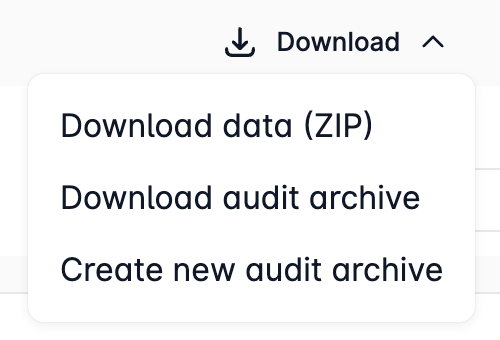
You see only the items your permissions allow. Without the audit archive permissions the menu has only Download data (ZIP).
The applicant's signature itself, with its signed copies and certificate, is shown in the E-signature block of the profile. See E-signature.
Statuses
| Status | Meaning |
|---|---|
| Requested | The audit archive is queued. |
| Generating | The audit archive is being built. This can take a while for applicants with a lot of media. |
| Ready | The audit archive is sealed and can be downloaded. |
| Failed | The audit archive could not be built. The row shows the reason. |
The status updates on its own while an audit archive is being built.
Download
Click Download archive (ZIP) on a Ready audit archive in the Audit archives block, or choose Download audit archive in the Download menu for the latest one. Downloading is free. Each download is written to the applicant's timeline ("Audit archive downloaded by ...").
What is inside
README.txt- how to verify the archive: the verify link with the archive ID first, then the manual checks. In an audit archive made in Test mode it has no verify link: it says that the archive was made in Test mode and cannot be verified.report.pdf- the applicant profile report.aml.pdf- the AML report, if an AML check ran.logs.pdf- the history of changes. It holds the newest 10,000 events at most.questionnaire.pdf- the questionnaire answers, if the applicant filled one in (questionnaire-1.pdf,questionnaire-2.pdfand so on if there are several).data-confirmation.pdf- in an audit archive made by the flow, if the applicant confirmed their data: when and from where they confirmed (UTC time, IP address, device, location), the confirmation text exactly as shown, the text SHA-256, the data SHA-256, the confirmation SHA-256, the confirmation and transaction IDs, and the table of the confirmed data (each value, or the SHA-256 of each file; an item whose file was gone is marked missing). If the applicant confirmed in an earlier run of the verification, the Transaction ID is followed by "Recorded during an earlier verification run". It is sealed like every other PDF and listed in the certificate of completion.crypto-aml/- crypto address risk reports, if any.media/- the original photos, videos and files, unchanged.signature/- in an audit archive made by the flow, if the applicant signed in the E-signature step: the signed copies of your documents and the signature certificate, exactly as they were sealed when the applicant signed (each keeps its own seal).certificate-of-completion.pdf- a summary of the audit archive and the hash of every file. In an audit archive made by the flow it shows the signature (signature ID, when it was signed, the typed name, the number of documents signed and the signature SHA-256;Form data SHA-256isnonefor new signatures), orEnd-user signature: not capturedif there was no signature. It also states that the data is the applicant's data as Allpass.ai held it when the archive was generated, so it can include changes made after the verification, for example a step the applicant repeated later.manifest.json- the list of all files with their SHA-256 hashes. A file that belongs to the audit archive but could not be included is listed there with the reason. It also has adataConfirmationsummary (see below).verifyUrlis the link to the public verification page of this archive.manifest.json.p7s- the seal of the manifest.
Every PDF made for the archive has a footer with the archive ID, the applicant ID, the page, the time of generation and, in a live audit archive, Verify:, a link to the verification page of the audit archive. The PDFs of an audit archive made in Test mode have no verify link. The signed copies and the certificate in signature/ keep their own footer (signature ID, applicant ID). In a live audit archive README.txt starts with the same verify link. Every PDF carries a PAdES seal with a trusted timestamp.
Data confirmation in manifest.json
dataConfirmation in manifest.json summarises the applicant's data confirmation, or is null when the verification has none (always in a manually created audit archive):
"dataConfirmation": {
  "path": "data-confirmation.pdf",
  "confirmationId": "3c1f9a52-7d0e-4b8a-9f3e-0c6a2d4b7e15",
  "transactionId": "<verification run ID>",
  "recordedInEarlierRun": false,
  "confirmedAt": "2026-11-27T10:15:30.000Z",
  "textSha256": "<hex>",
  "dataSha256": "<hex>",
  "confirmationSha256": "<hex>"
}
path- the file in the archive;confirmationIdandconfirmedAt(UTC) - the confirmation and when it was made;transactionId- the verification run that recorded the confirmation;recordedInEarlierRun-truewhen this archive's run skipped the step because the applicant had already confirmed in an earlier run (the PDF says "Recorded during an earlier verification run");textSha256- the SHA-256 of the confirmation text;dataSha256- the SHA-256 of the list of the confirmed data;confirmationSha256- the SHA-256 that binds the text, the data, the time and the ID.
The manifest has no IP address and no text: they are in data-confirmation.pdf.
Create an audit archive manually
Use it when the flow had no Audit archive step and you still need an audit archive, or when you need a newer snapshot.
- In the applicant's profile, open the
Downloadmenu and chooseCreate audit archive(Create new audit archiveif the applicant already has a Ready audit archive). - The dialog
Create audit archiveexplains what a manually created audit archive is and that it is paid, with a link to this page. If a manually created audit archive for this applicant already exists, it says so and warns that a new one is charged again. - Click
OK.
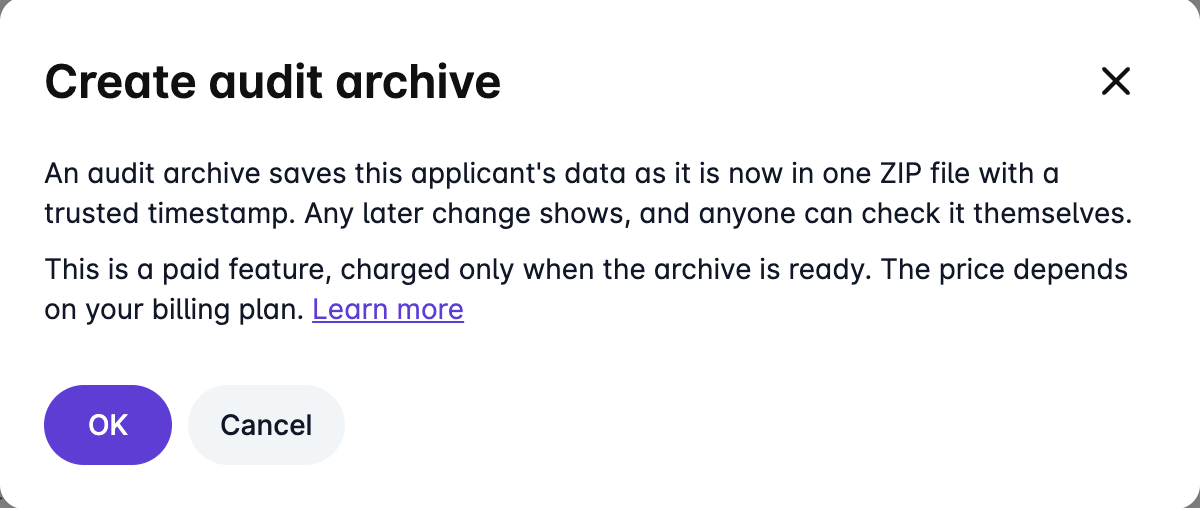
- It is a paid service. The price depends on your billing plan: see the price of each check when you choose or change a plan. You are charged only when the audit archive is Ready. A failed audit archive is not charged. A manually created audit archive made in Test mode is not charged.
- While another audit archive of the applicant is being built, the menu shows
Audit archive: generating…instead. - When your balance is too low,
Create audit archiveopens the dialogNot enough balanceinstead, withGo to Billing. Top up the balance there and try again (see Not enough balance). - After you confirm, the
Audit archivesblock shows the new audit archive as Requested. - You need the
Create audit archive (paid)permission (see User Roles and Permissions). Ask your account owner if you do not see the item. - The certificate of completion of a manually created audit archive says
End-user attestation: not capturedandSnapshot taken at export time. It proves what Allpass.ai held at that time, not what the applicant signed. A manually created audit archive does not include the signature files; download them from theE-signatureblock.
Audit archive or free ZIP
| Download (free ZIP) | Audit archive (manual) | |
|---|---|---|
| Built | In your browser | On the server |
| Can be checked by a third party, with trusted timestamp | No | Yes |
| Third party can verify it | No | Yes |
| Price | Free | Paid |
The free ZIP download stays as it is.
Try again after a failure
- For a From the flow, click
Re-generate. It is free, and the audit archive is charged only once, when it is Ready. - If the reason is "The signature files are not ready. Re-generate the signature first.", first click
Re-generatein theE-signatureblock, wait until the signature files are Ready, then re-generate the audit archive. - For a Created manually, click
Re-generatein its row (or create a new one from theDownloadmenu). You need theCreate audit archive (paid)permission. It is charged only if the new audit archive becomes Ready. - For a From E-signature (older archives), click
Re-generate.
If the reason says "Please retry" (for example "Generation failed. Please retry or contact support."), wait a moment and try again. If it keeps failing, contact support.
Retention
Audit archives are stored immutably for a retention period, so they cannot be changed or removed in the meantime. When you delete an applicant, their audit archives are deleted too. See Applicant Profile Deletion.
Audit archives made in Test mode
Audit archives made in Test mode carry the mark "TEST MODE — not valid as evidence". The profile shows "Test archives can't be verified" instead of the Verify link, and the PDFs and README.txt have no verify link (the README says that the archive was made in Test mode and cannot be verified). They are not evidence, and they are never charged: neither archives made by the flow nor manually created audit archives.
Verify an audit archive
Anyone can check an audit archive, not only the client. Send the archive ID (it is shown in the Audit archives block of the profile and printed in the footer of the PDFs made for the archive) and the archive to the person who needs to check it. They do not need an account.
Check the archive ID
Open https://allpass.ai/verify (linked as Verify an audit archive in the site footer) and enter the archive ID, or just use the Verify link of a live archive in the applicant's profile or the link in the footer of any of its PDFs: it opens the page for that ID. The page shows Kind (From the flow or Created manually), Created at (UTC), Archive SHA-256, Archive size and Retained until (UTC).
If the audit archive was sealed with a certificate that was later revoked, the page warns "The seal of this archive is not trusted". The archive may still match, but its seal is not evidence any more; ask the organisation that sent it.
Only completed audit archives can be found. Audit archives made in Test mode are not verified there. If the ID is not found, check it and try again.
Check the archive hash
On the same page, drop the ZIP file into Check your archive. The page compares the file with the audit archive.
The file is checked in your browser. It is never uploaded.
- "This file is exactly the audit archive" - the archive is unchanged.
- "Different size" or "Different content" - this is not the audit archive. A re-packed or modified ZIP never matches.
You can also compute the SHA-256 yourself and compare it with the value on the page. The page gives the commands for macOS, Linux and Windows.
Check the PDF seal in Adobe Acrobat
- Download the Allpass.ai root certificate from https://allpass.ai/verify and import it once: in Acrobat open
Preferences,Signatures,Identities & Trusted Certificates,More..., selectTrusted Certificates, clickImport. - Select the imported root certificate, click
Edit Trustand tickUse this certificate as a trusted root. - Open any PDF from the archive. The signature panel shows the seal with an embedded timestamp.
Until the root certificate is trusted, Acrobat shows the seal issuer as unknown. This is expected: the seal belongs to the organisation, not to a person.
The verify page also explains how to check manifest.json and the file hashes with openssl.